Our 1080P Video Doorbell can be viewed as a standalone device with a Wi-Fi connection via the Night Owl Protect App or added to a compatible recorder. This article will walk you through both adding the doorbell to the app as a standalone device and adding it to a recorder.
Follow the detailed steps below:
Option 1 - Add to the Night Owl App as a Standalone device
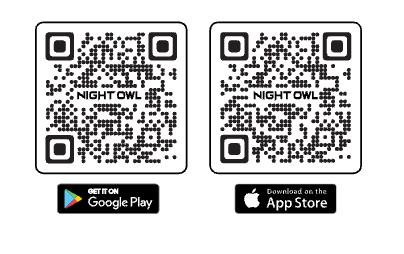
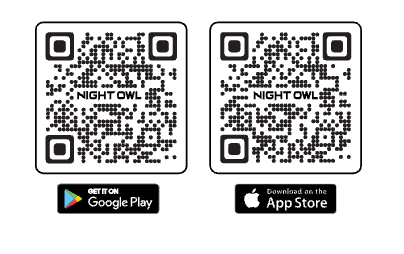
STEP 1: Download the Night Owl App. If you are a first-time user, go ahead and download the Night Owl mobile app. Quickly create an account and log in. Already have an account? Simply log in.
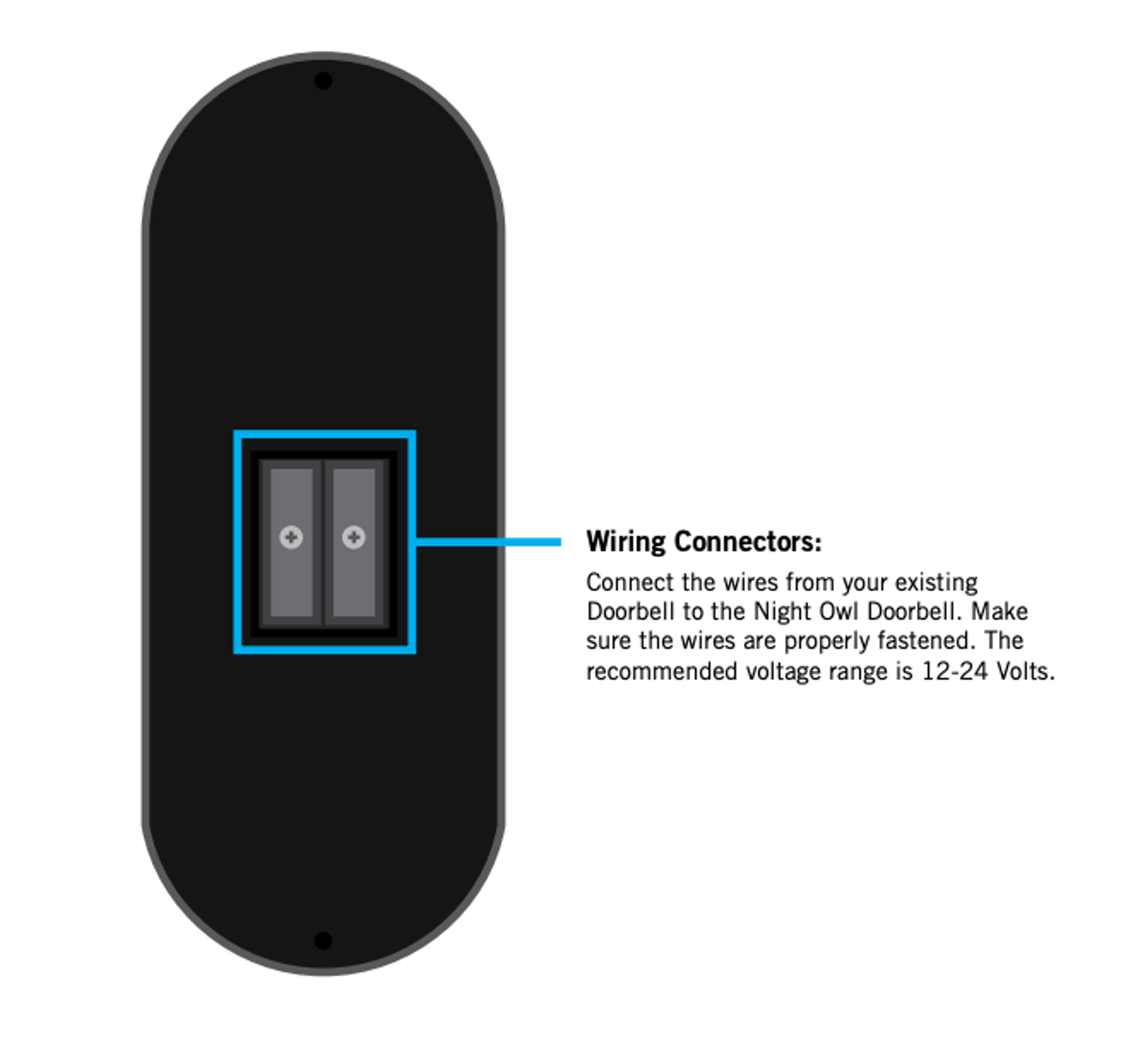
STEP 2: Ensure that the Video Doorbell is wired to receive power. For Instruction on how to wire the Doorbell, review the Manual that came with your device or click on the below link to download the Doorbell's Manual
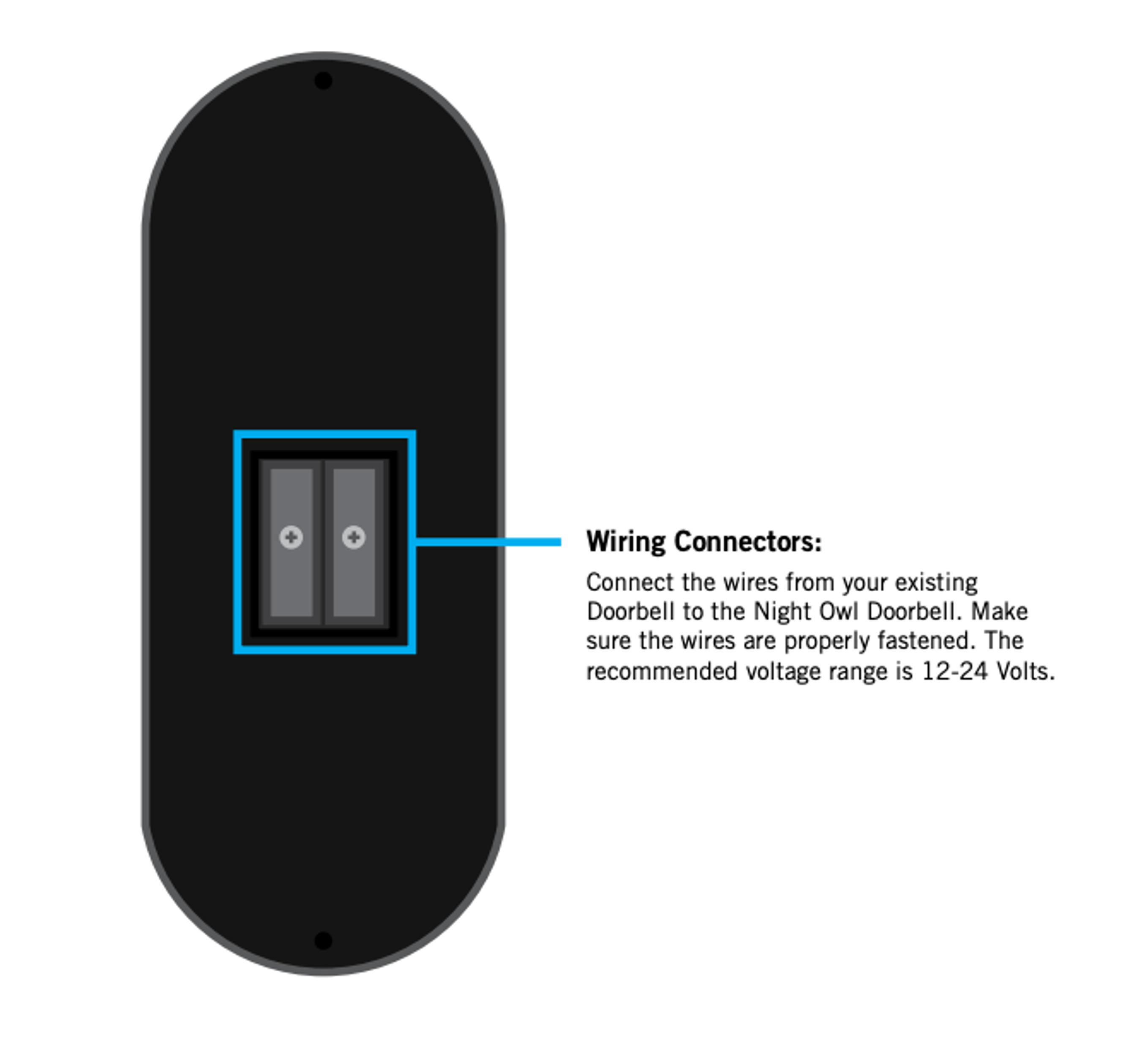
Note: For initial setup/pairing, have your Doorbell within 1 to 3 feet of your router.
STEP 3: From within the app, proceed to the Devices page and Tap on “Add New” or “+” and scan the QR code on the side of the Doorbell.
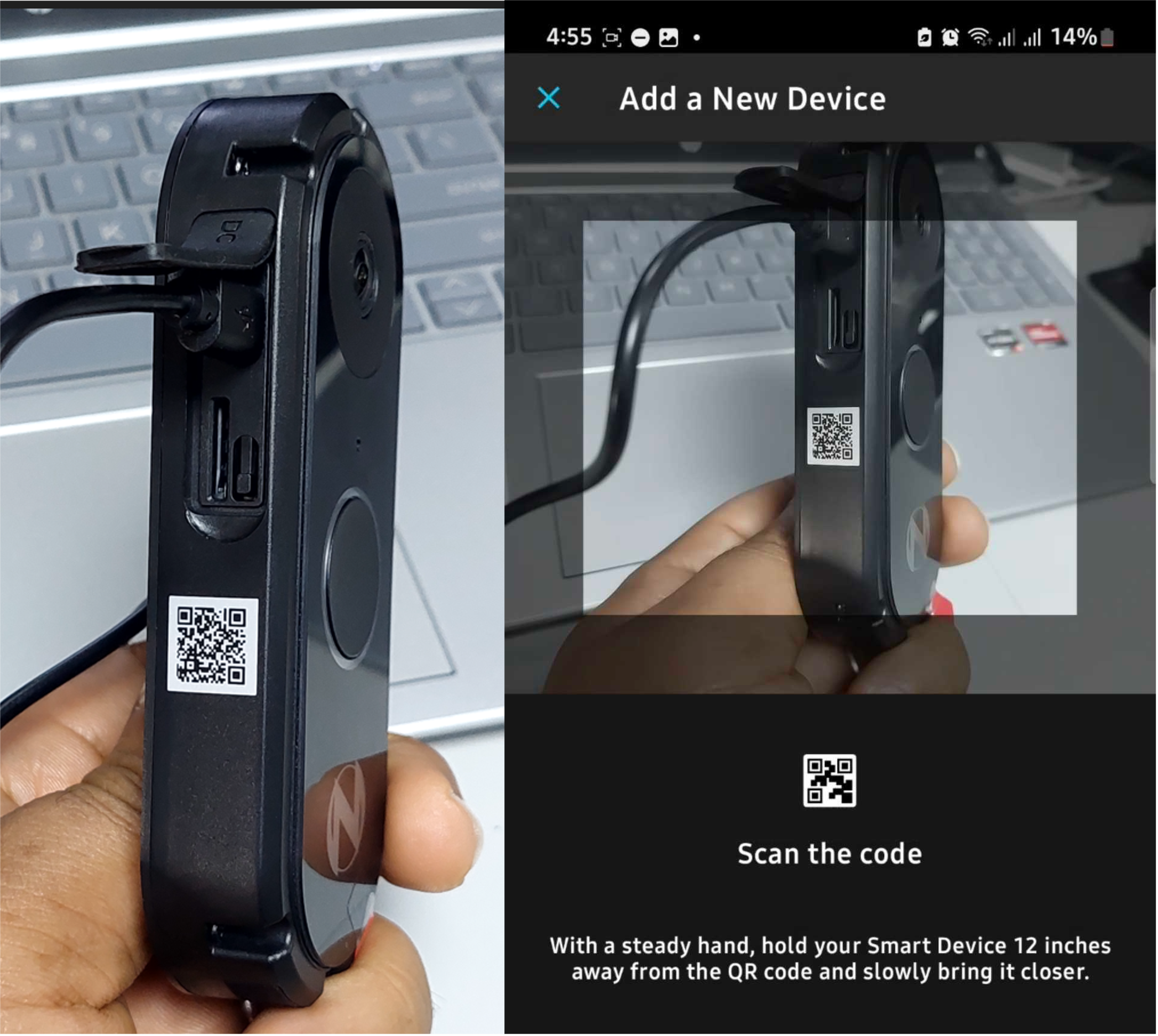
IMPORTANT: The app may prompt you to grant access to your mobile device's camera to scan the QR Code.
STEP 4: The app will now access the Doorbell's WLAN network. Once this occurs it will search for available Wi-Fi networks. Please ensure you have the name and password for your Wi-Fi network handy. Tap "Join" to continue.
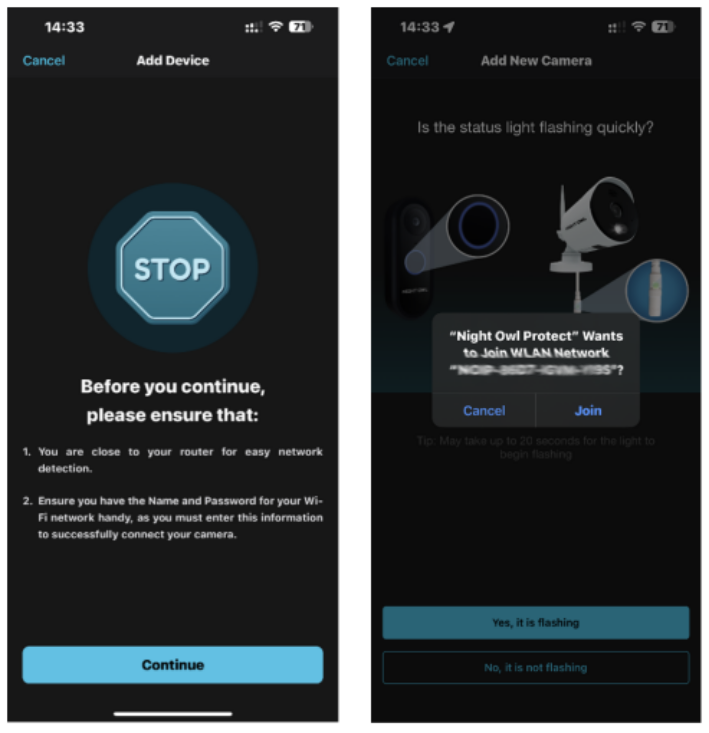
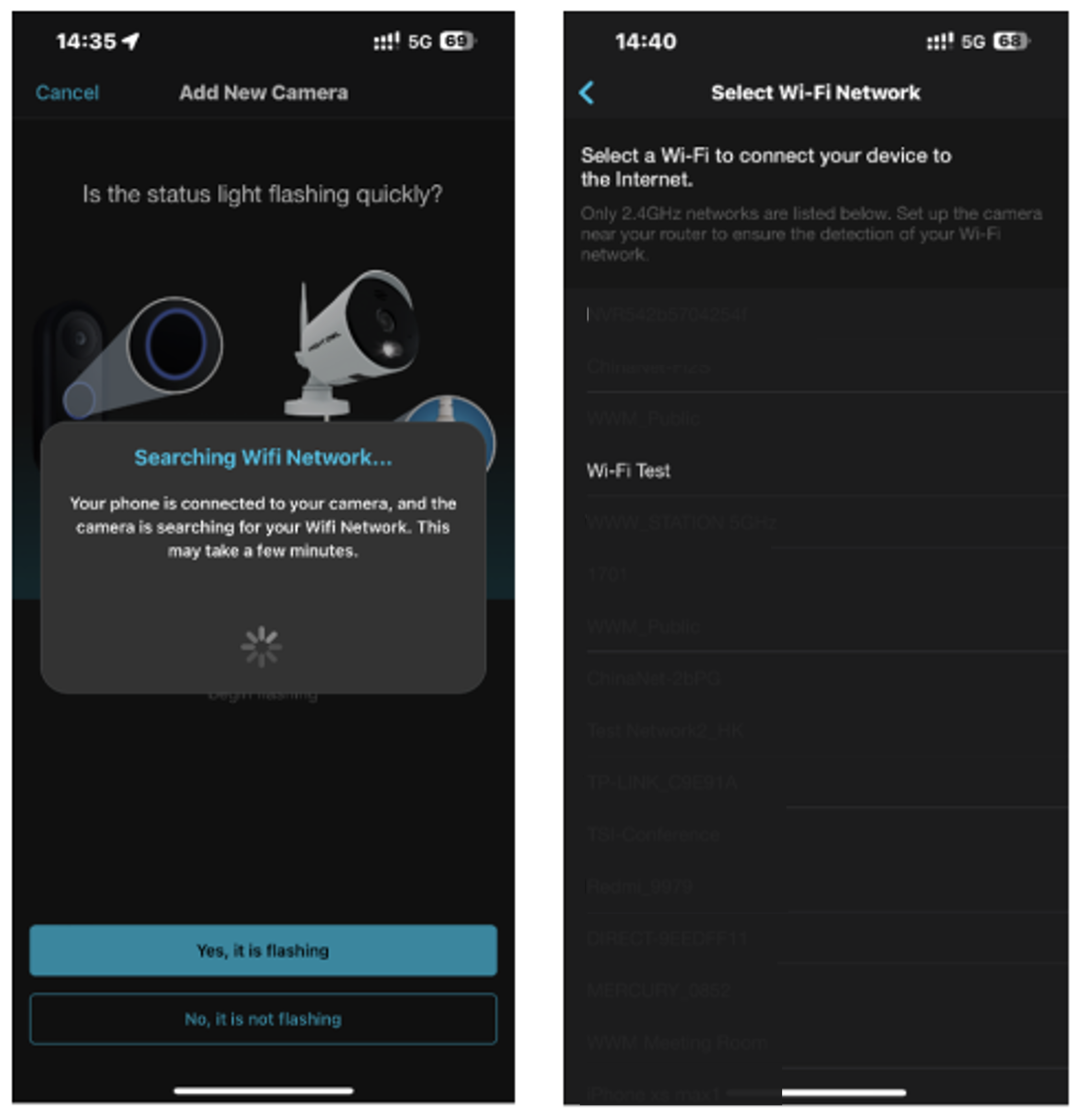
STEP 5: Your mobile device is now connected to your doorbell and will search for available Wi-Fi networks. Choose your Wi-Fi network.
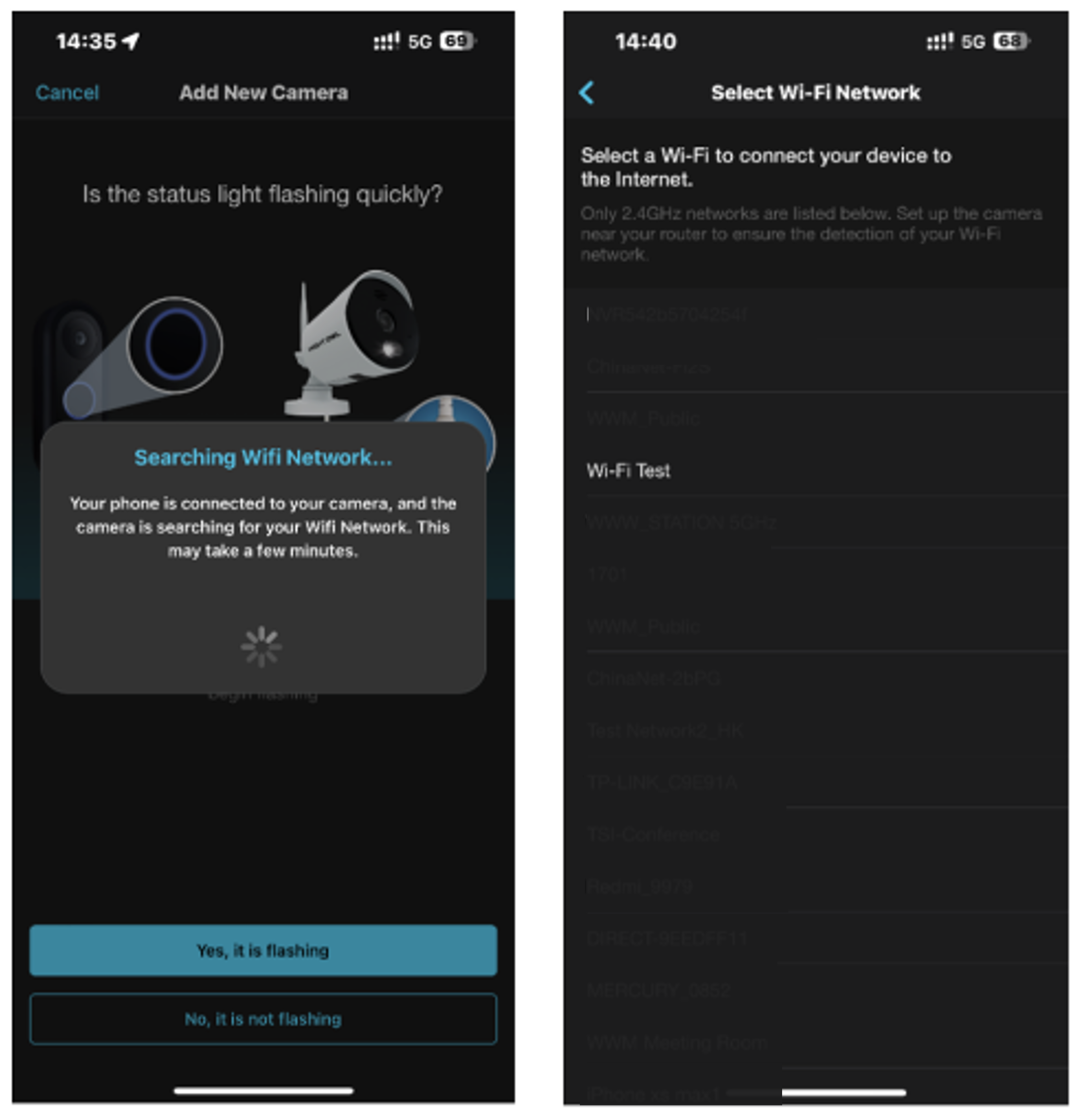
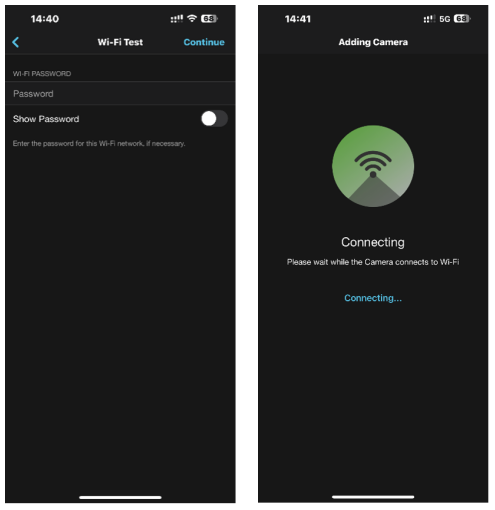
STEP 6: Enter the password for your Wi-Fi network.
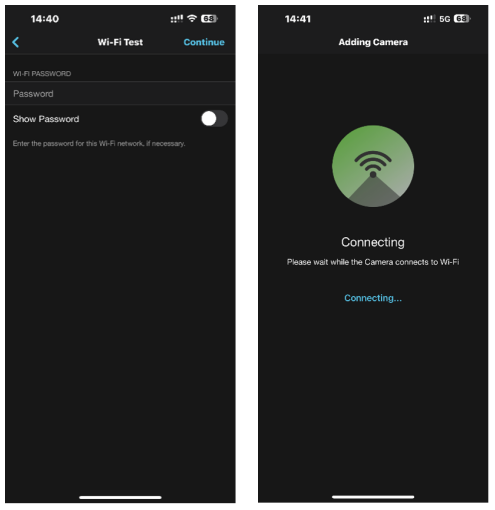
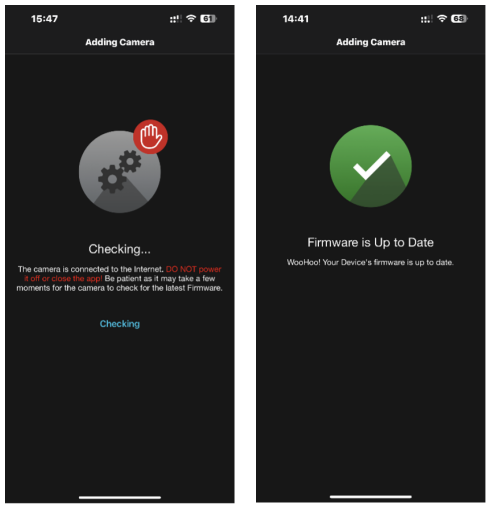
STEP 7: Your Doorbell will now check for available firmware (FW) updates. DO NOT disconnect your Doorbell during this search. May take 1 to 3 minutes to search for and update the FW.
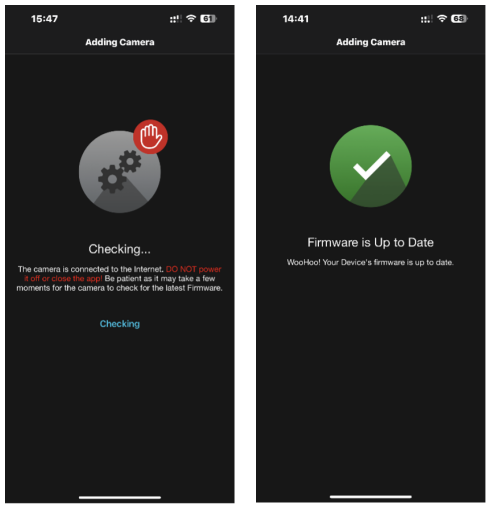
STEP 8: You will now be required to name your Doorbell You can choose a preset option or customize the name. Additionally, you may adjust your Doorbell's recording and notification settings at this time or circle back later on.
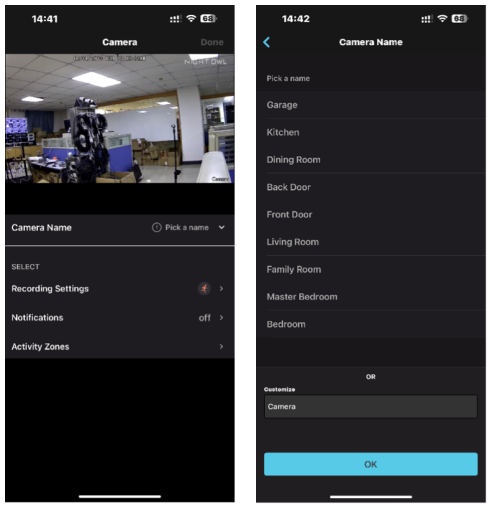
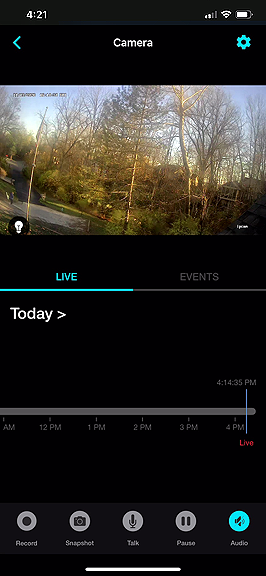
STEP 9: Your Doorbell is now set up and ready for live view!
Option 2 - Add to a Compatible Wi-Fi Recorder from Night Owl Protect App
STEP 1: Download the Night Owl App. If you are a first-time user, go ahead and download the Night Owl mobile app. Quickly create an account and log in. Already have an account? Simply log in.
STEP 2: Ensure that the Video Doorbell is wired to receive power. For Instruction on how to wire the Doorbell, review the Manual that came with your device or click on the below link to download the Doorbell's Manual
Note: For initial setup/pairing, have your Doorbell within 1 to 3 feet of your router.
STEP 3: From within the app, proceed to the Devices page and Tap on “Add New” or “+” and scan the QR code on the side of the Doorbell.
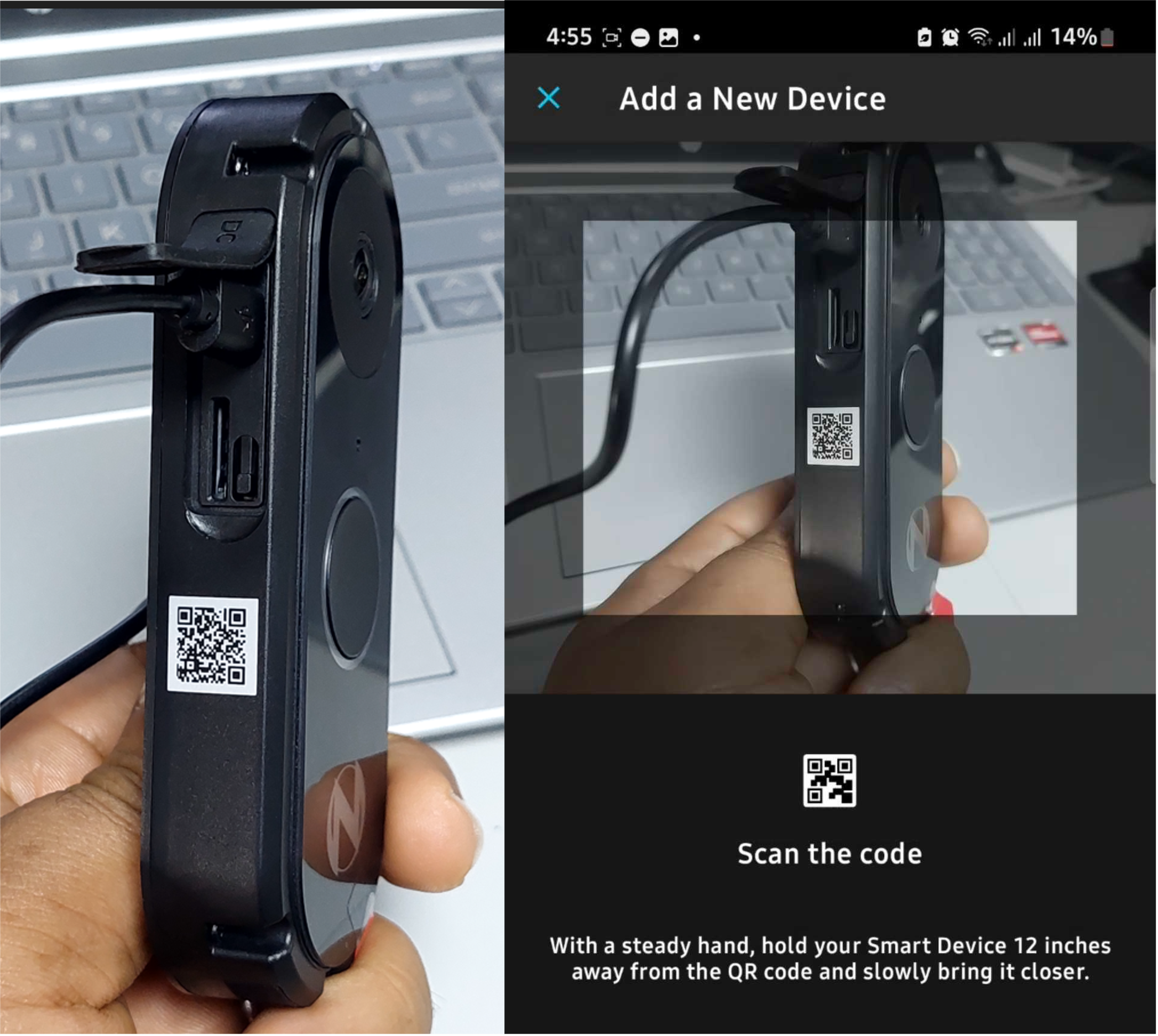
IMPORTANT: The app may prompt you to grant access to your mobile device's camera to scan the QR Code.
STEP 4: The app will now access the Doorbell's WLAN network. Once this occurs it will search for available Wi-Fi networks. Please ensure you have the name and password for your Wi-Fi network handy. Tap "Join" to continue.
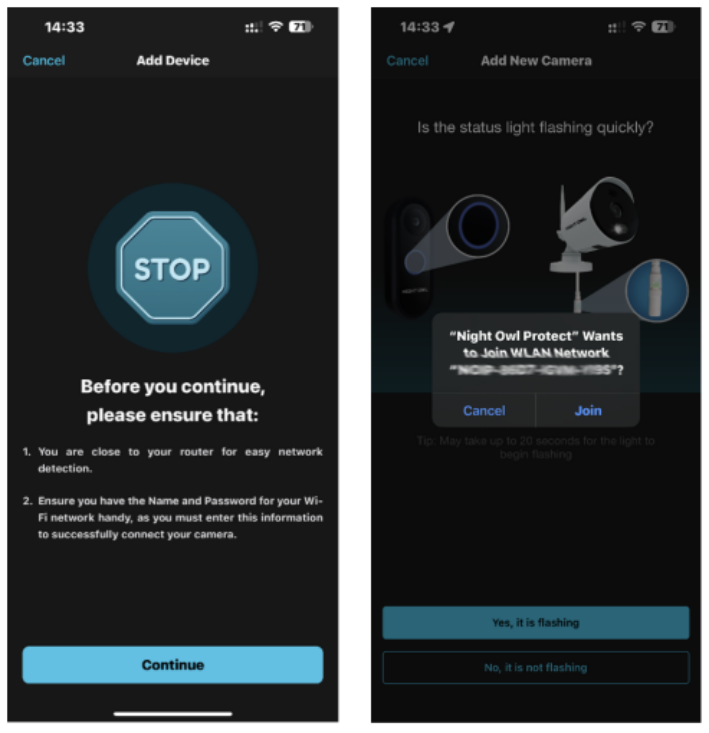
STEP 5: Your mobile device is now connected to your doorbell and will search for available Wi-Fi networks. Choose your Wi-Fi network.
STEP 6: Enter the password for your Wi-Fi network.
STEP 7: Your Doorbell will now check for available firmware (FW) updates. DO NOT disconnect your Doorbell during this search. May take 1 to 3 minutes to search for and update the FW.
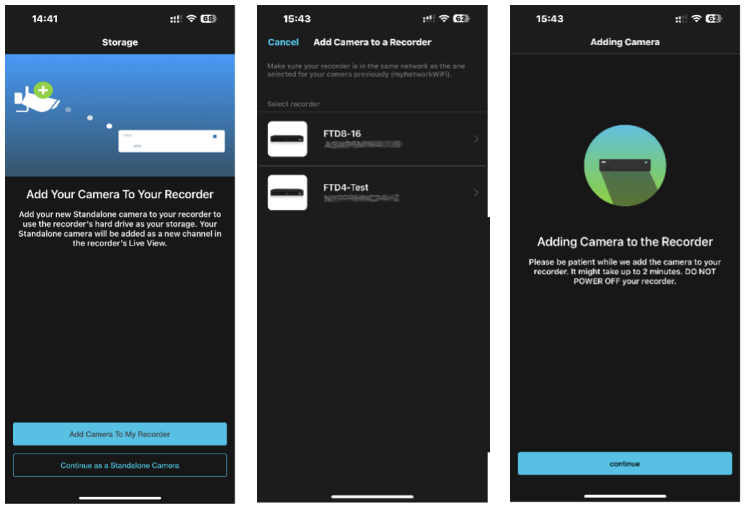
STEP 8: On the Storage screen, tap "Add Camera to My Recorder" then choose the recorder you wish to add the Doorbell to.
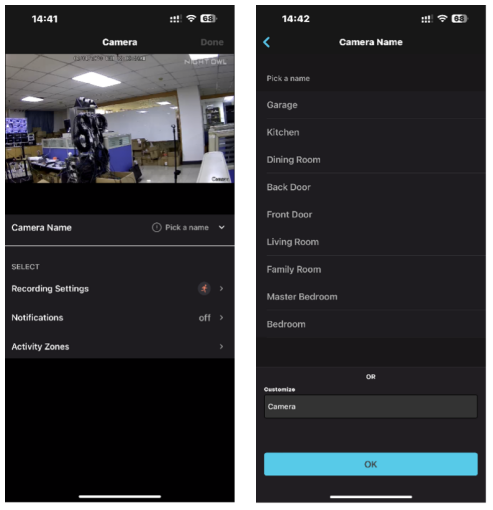
STEP 9: You will now be required to name your Doorbell. You can choose a preset option or customize the name. Additionally, you may adjust your doorbell's recording and notification settings at this time or circle back later on.
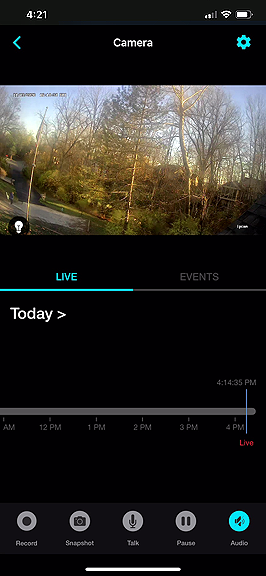
STEP 10: Your Doorbell is now set up and ready for live view!
Option 3 - Manually Adding Your Doorbell to a Compatible Recorder
STEP 1: Log in to your compatible Night Owl recorder.
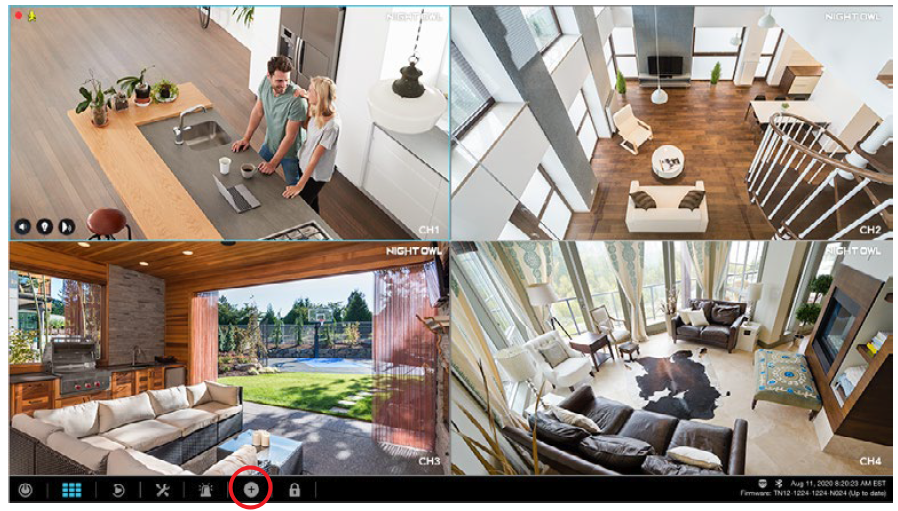
STEP 2: Click the "+" at the bottom of your live view screen.
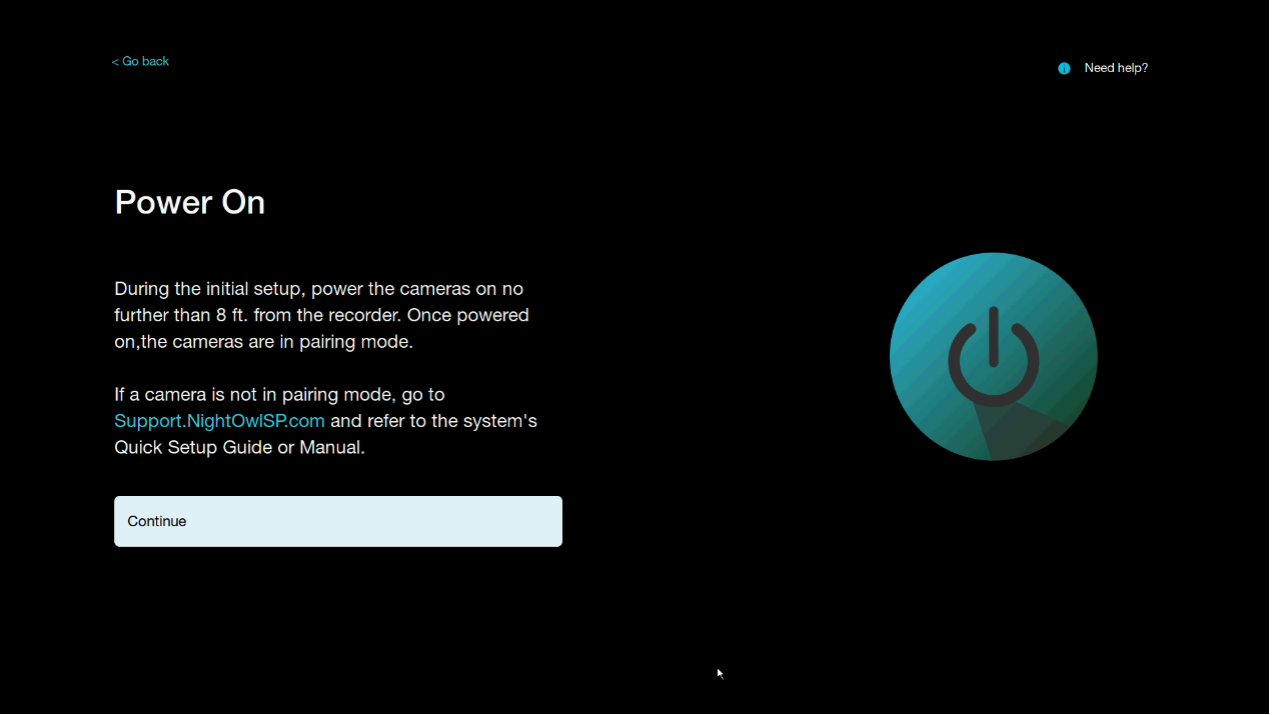
STEP 3: Ensure the Doorbell is powered on and near your recorder. and click "Continue."
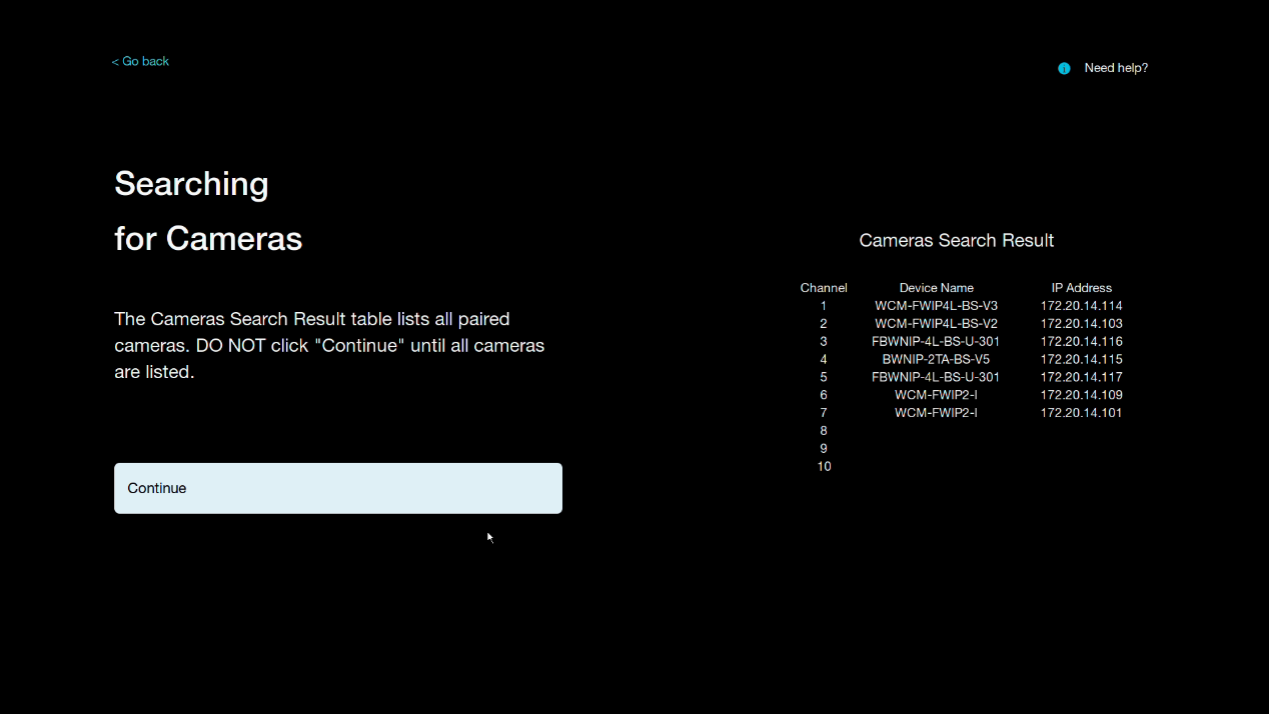
STEP 4: Your recorder will now search for your new Doorbell. Once you see all connected cameras, including your new Doorbell, in the right Search Result field click "Continue."
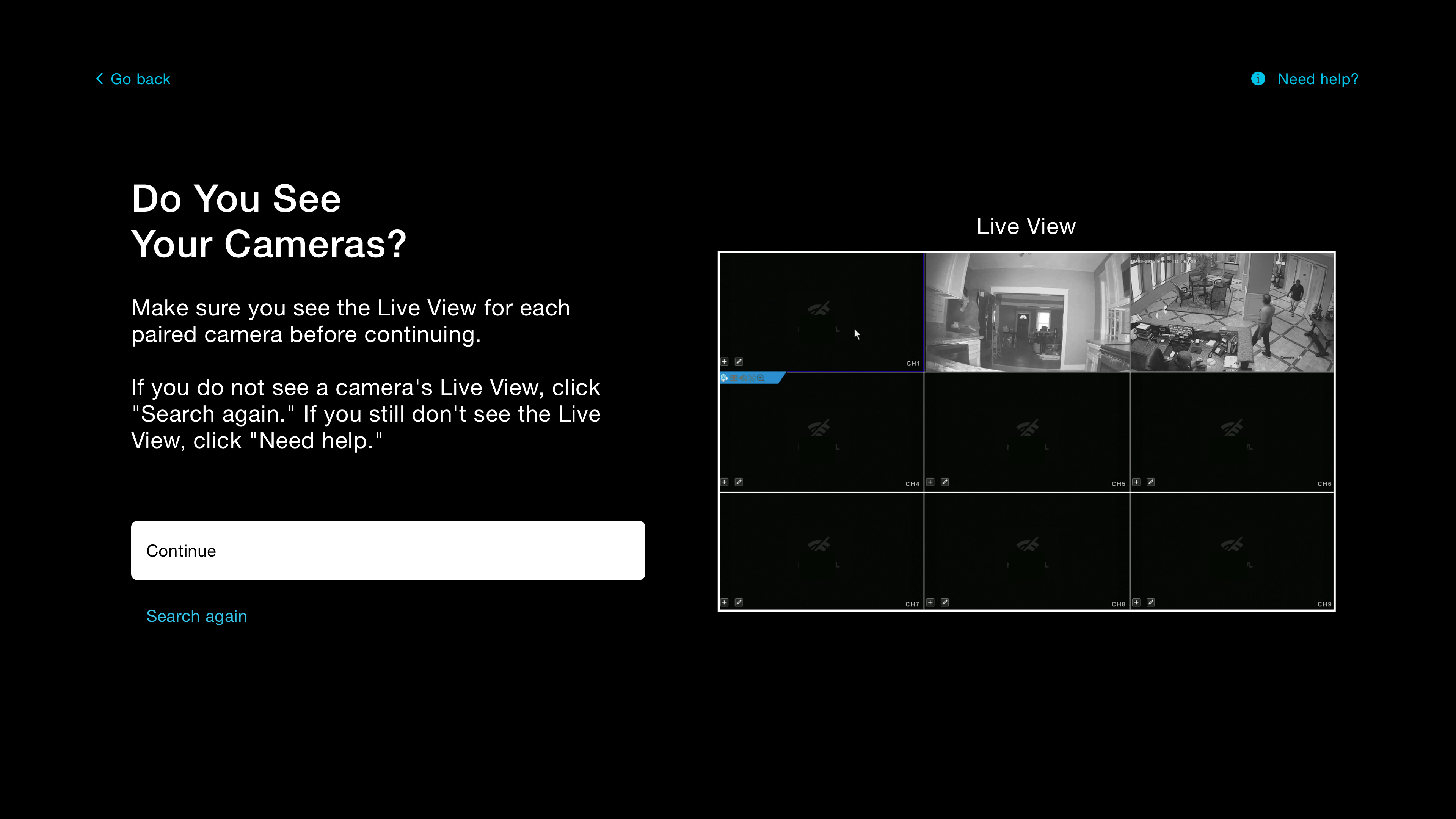
STEP 5: Confirm that you see the live view for all connected doorbells/cameras and then click "Continue."
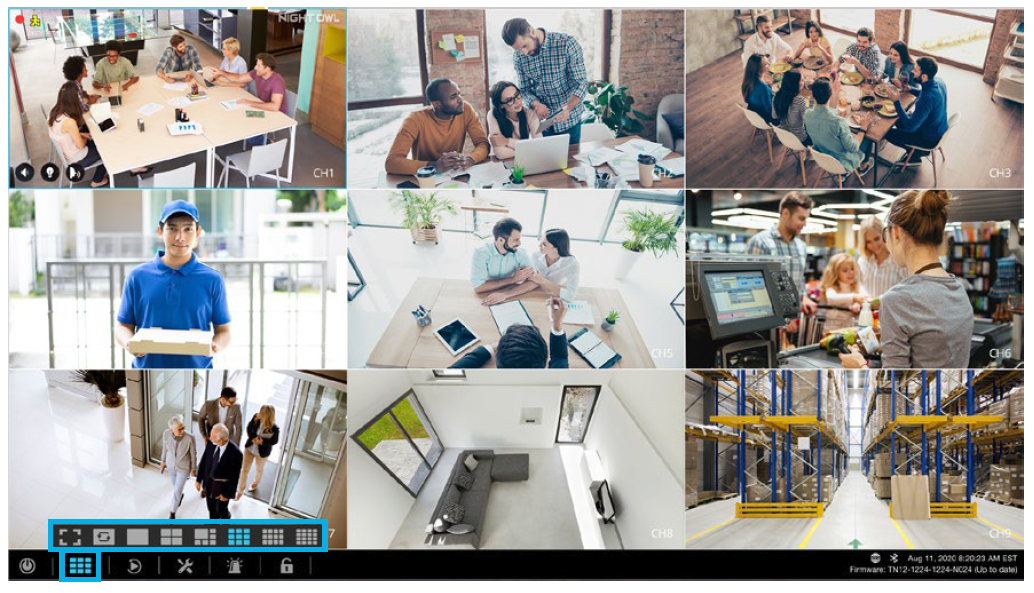
STEP 6: You can now live view your Doorbell!
Thank you for Choosing Night Owl!
Was this article helpful?
That’s Great!
Thank you for your feedback
Sorry! We couldn't be helpful
Thank you for your feedback
Feedback sent
We appreciate your effort and will try to fix the article