After resetting the DVR / NVR password, you MUST follow the steps below to remove and add the device to the Night Owl Connect App.
YOU MUST FOLLOW THE STEPS BELOW OR YOUR DEVICE WILL NOT WORK WITH THE APP! DO NOT SKIP THE FOLLOWING STEPS!!
 | The following instructions are only for DVR's/NVR's that use the Night Owl Connect App. |
*Application Images may vary
Step 1: If you don’t have the App, download it from the Google Play Store (Android) or App Store (iOS).
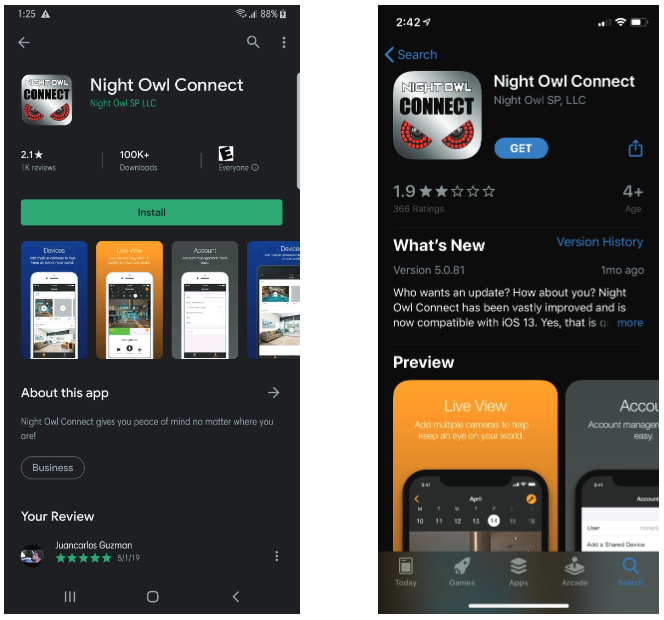
Step 2: Log into the App with your email address and the App’s password (not the DVR / NVR password).
Step 3: The application displays the device as “Connecting” or “Offline” status. If you don’t have a device listed, skip to step 7.
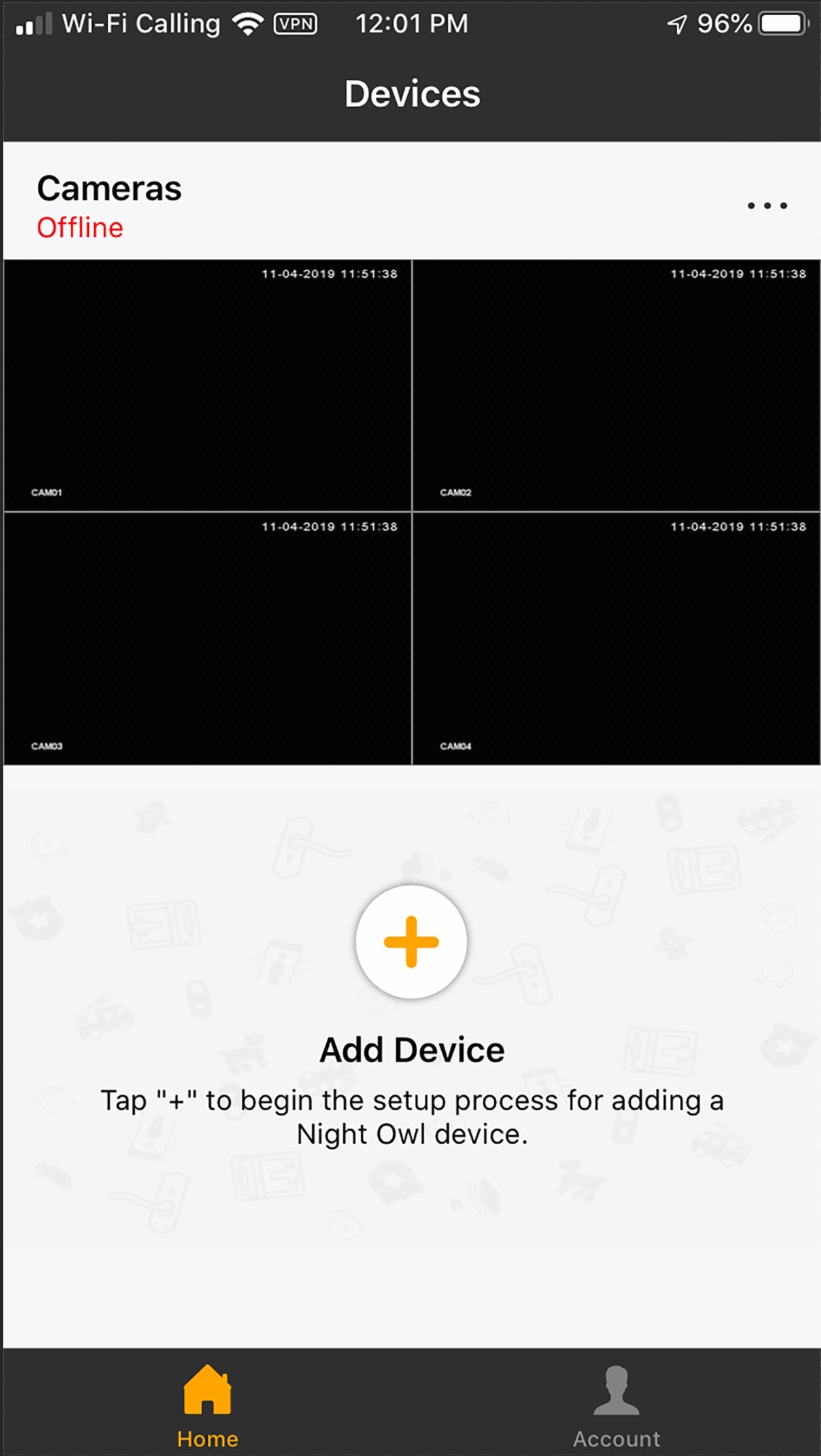
Step 4: Select the Device’s menu button by tapping the “...” icon.
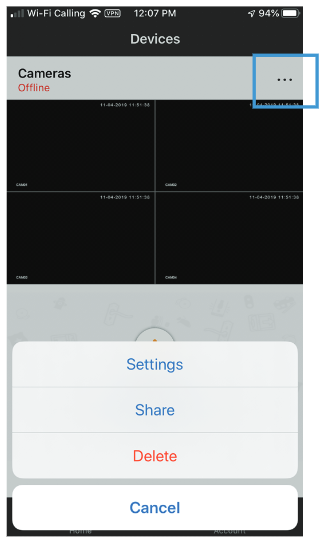
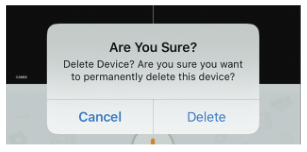
Step 6: After tapping “Delete,” a confirmation message appears. Tap “Delete” to remove the device.
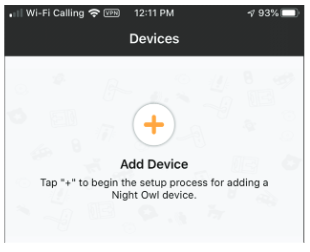
Step 7: To add the DVR / NVR back to the App, your Smart Device MUST be connected to the same network as the DVR / NVR.
Step 8: Tap the “+” icon.
Step 9: Tap “DVR / NVR” from the list of device types.
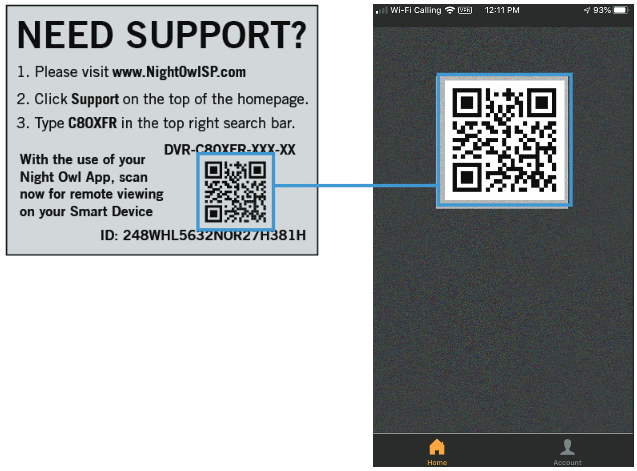
Step 10: Locate the QR Code on the device’s Support Sticker.
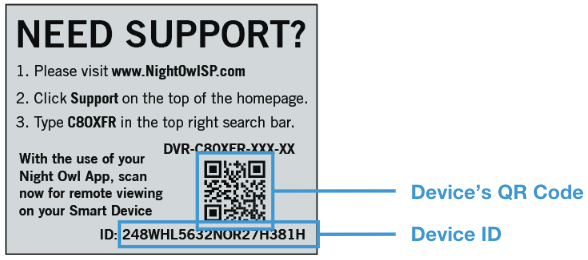
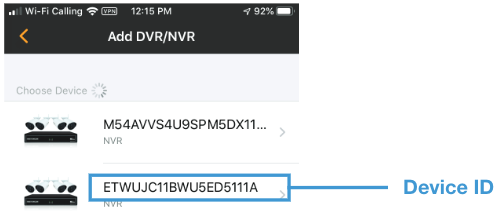
Step 11: If a device has been previously added to the App, it will appear here. Select the DVR / NVR (with the matching Device ID) to add to the App.
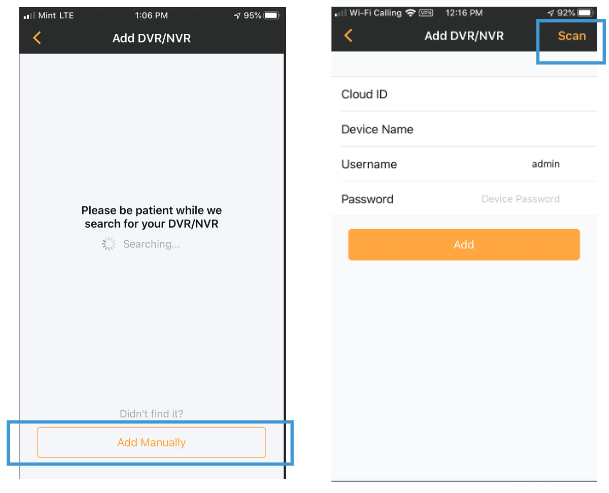
Step 12: If no devices are listed, tap “Add Manually,” then tap “Scan.”
Step 13: Scan the Device’s QR Code.
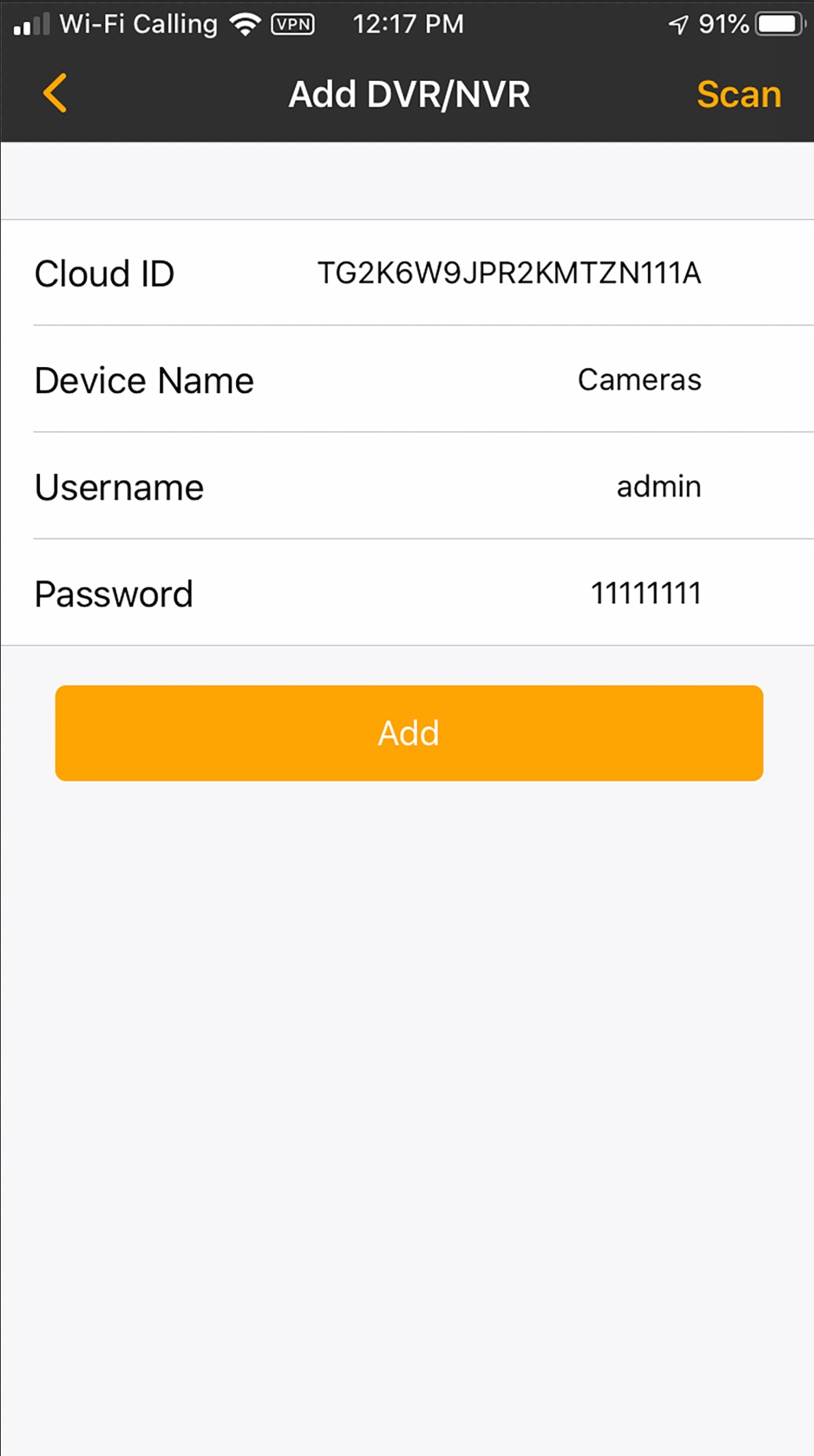
Step 14: Create a name for the device and enter the device’s admin password (the new password created during the password reset).
Step 15: Finally, if the password is correct, the DVR / NVR appears on the “Devices” screen and displays a Connected status: “Online”.
Well done! Make sure to save your new password in a secure location. Remember, the Night Owl Support Site has the answers to your questions. Why call when our Support Site has it all!
 | |
Was this article helpful?
That’s Great!
Thank you for your feedback
Sorry! We couldn't be helpful
Thank you for your feedback
Feedback sent
We appreciate your effort and will try to fix the article