
As your recorder accumulates recordings, it eventually becomes full. When this happens, the oldest recordings stored are overwritten by the latest recordings. If there are recordings that you want to save long-term, you need to export them to a USB flash drive or external hard drive.
 | IMPORTANT! To export your recording, you must first format your USB flash drive or external hard drive to a FAT32 or ExFat format. Formatting a drive will erase everything that is on that drive, so ensure you have all your files saved before continuing. |
Step 1: Take your formatted drive and plug it into the USB port on your recorder to begin.
Step 2: Log in to your recorder and access the Playback Menu.
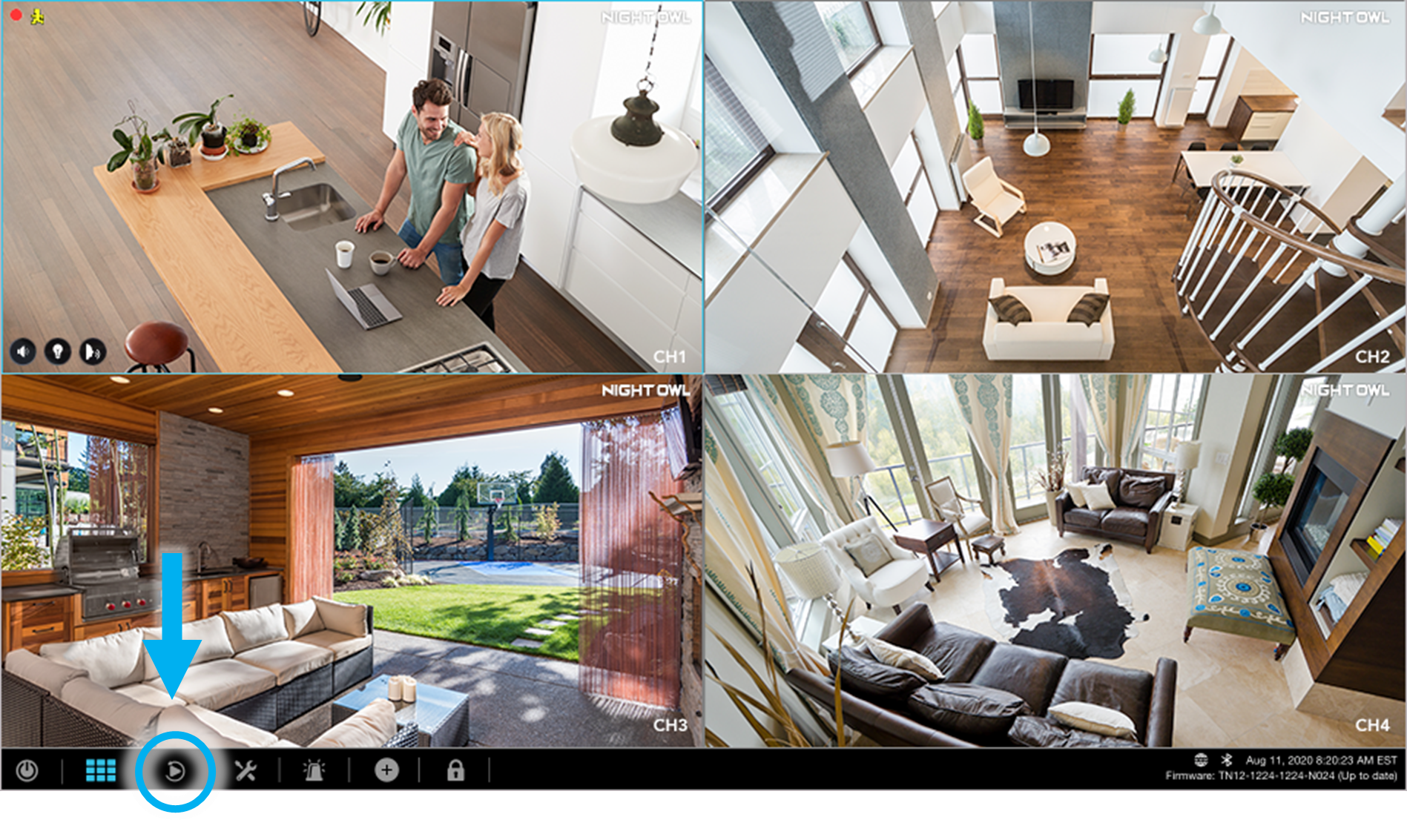
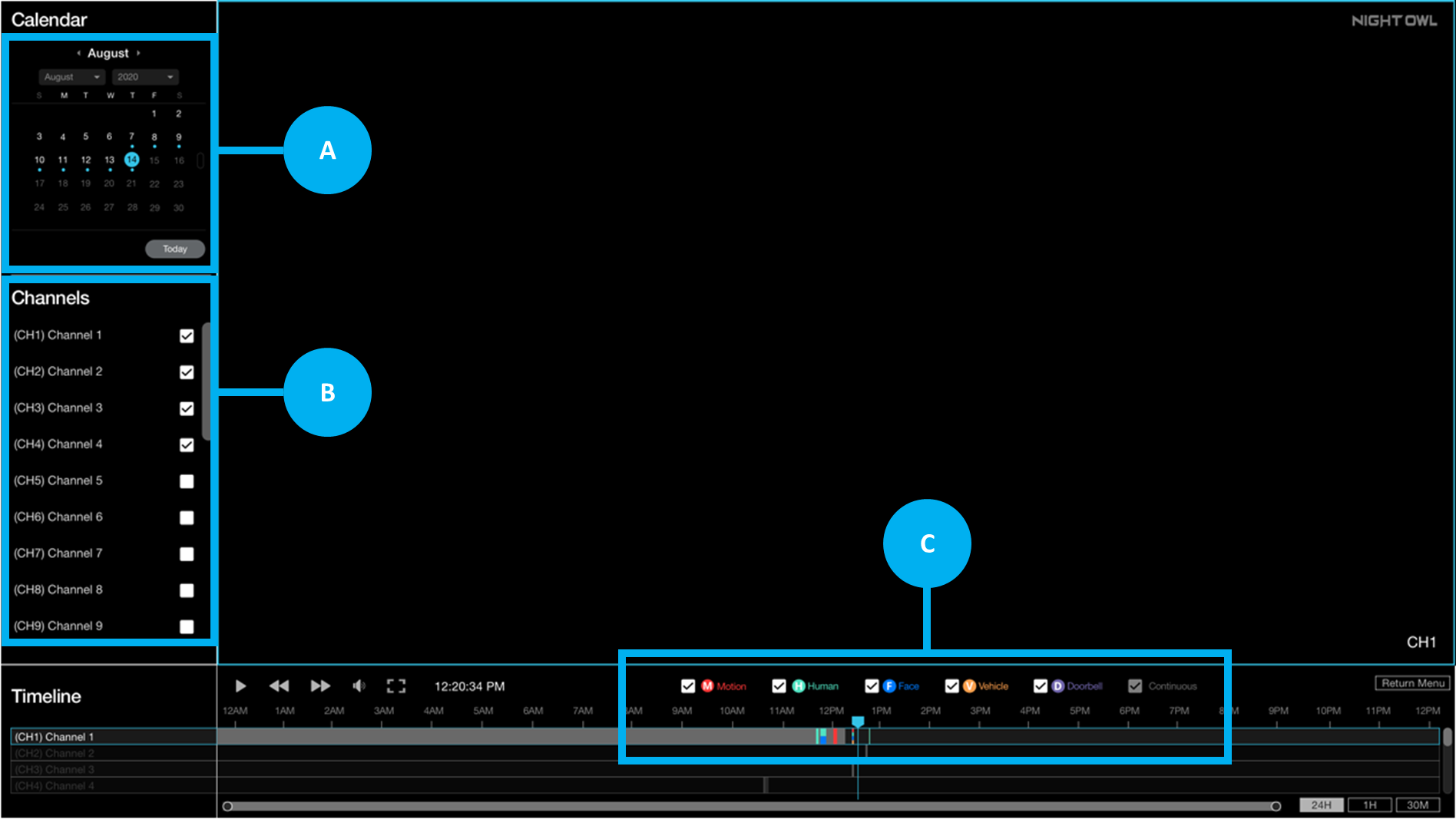
Step 3: From the Playback Menu, choose the recording you want to export by:
A - Selecting the correct date on the calendar (days with a blue dot have recordings)
B - Choosing the channel which has the desired recording
C - Selecting the event from the timeline
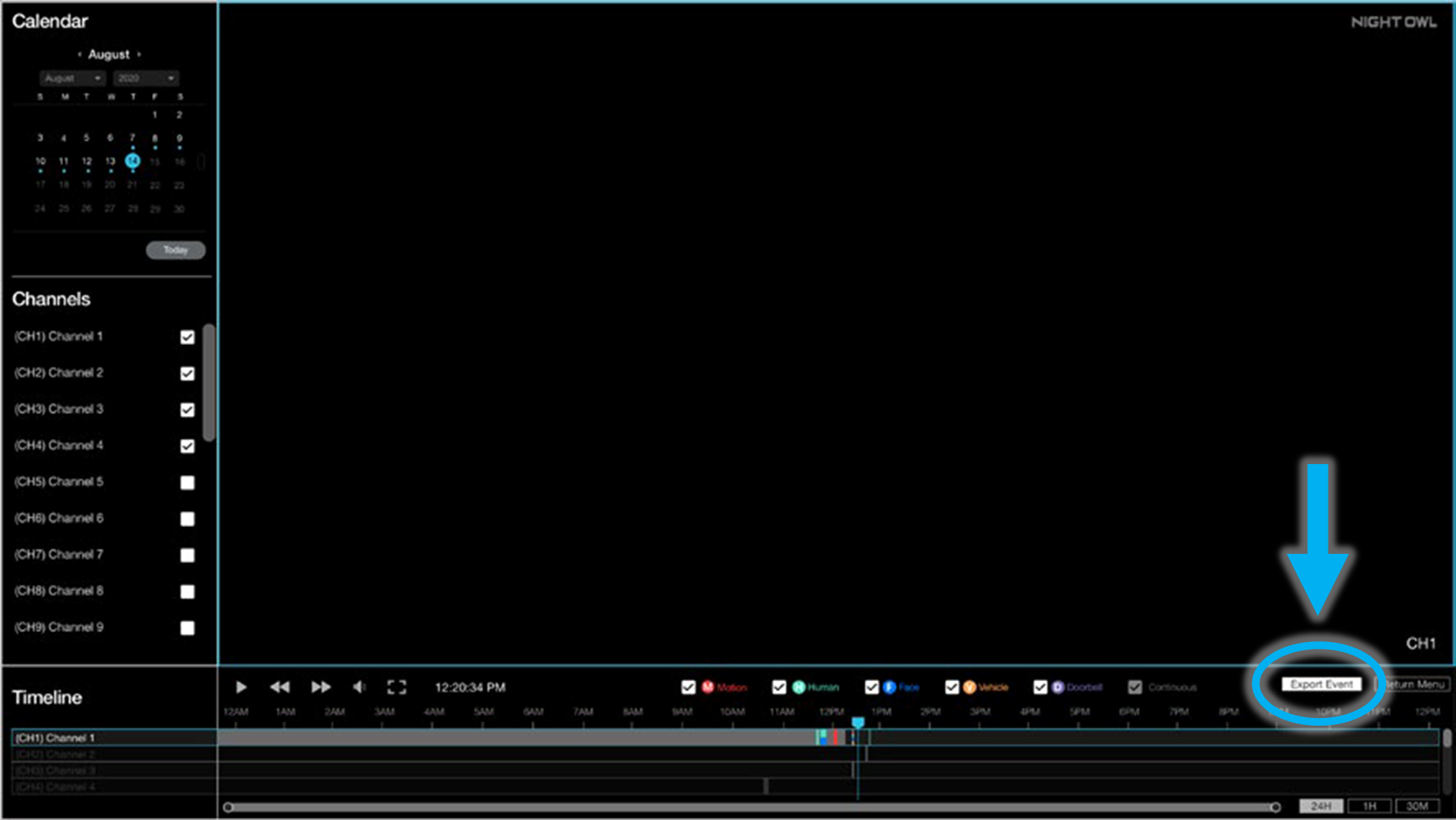
STEP 4: Once you have the desired recording selected, click Export Event.
STEP 5: From the Export Menu, verify the recording you have selected and then click Export.
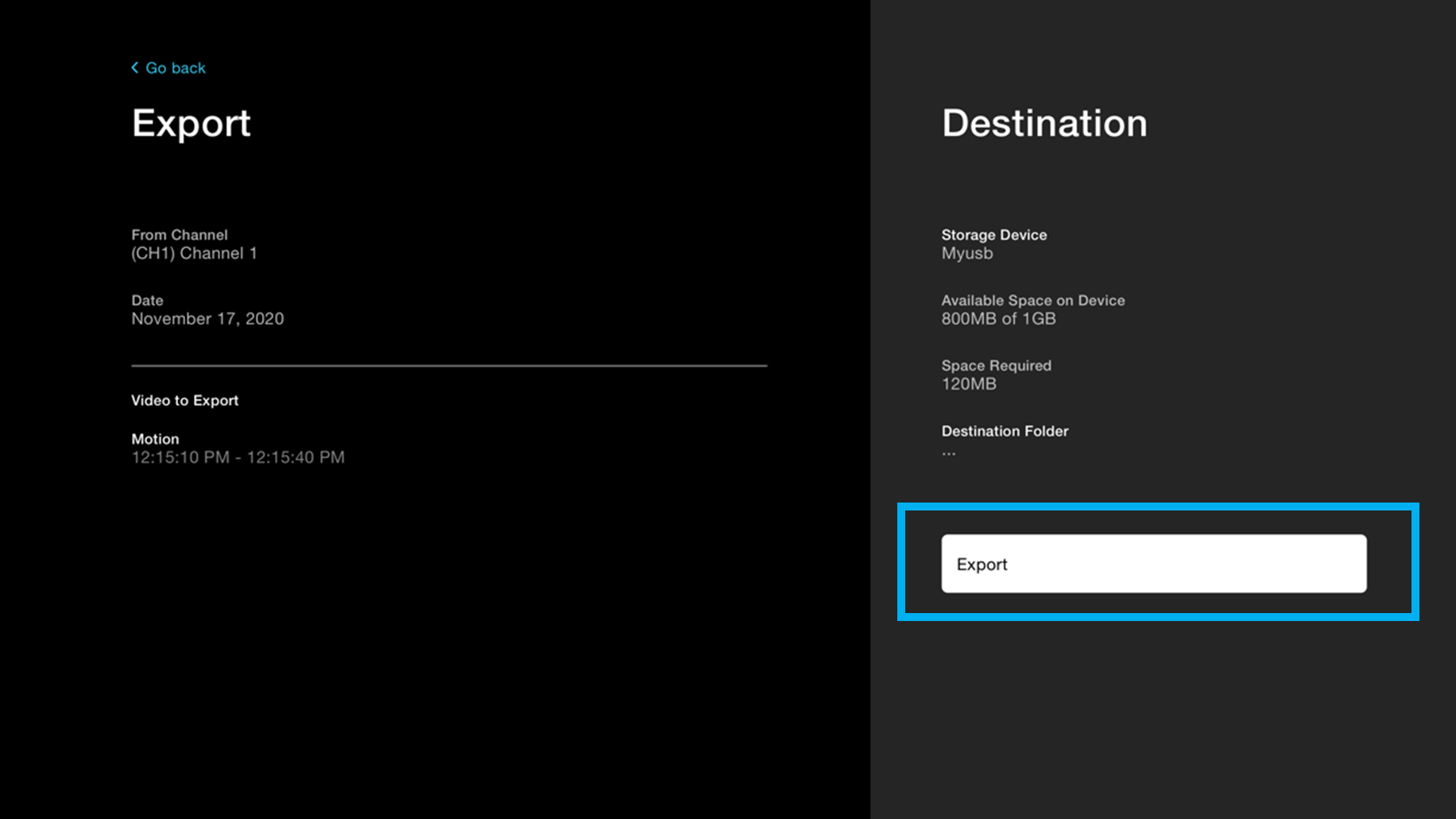
STEP 6: Select the destination folder (your USB flash drive or external hard drive).
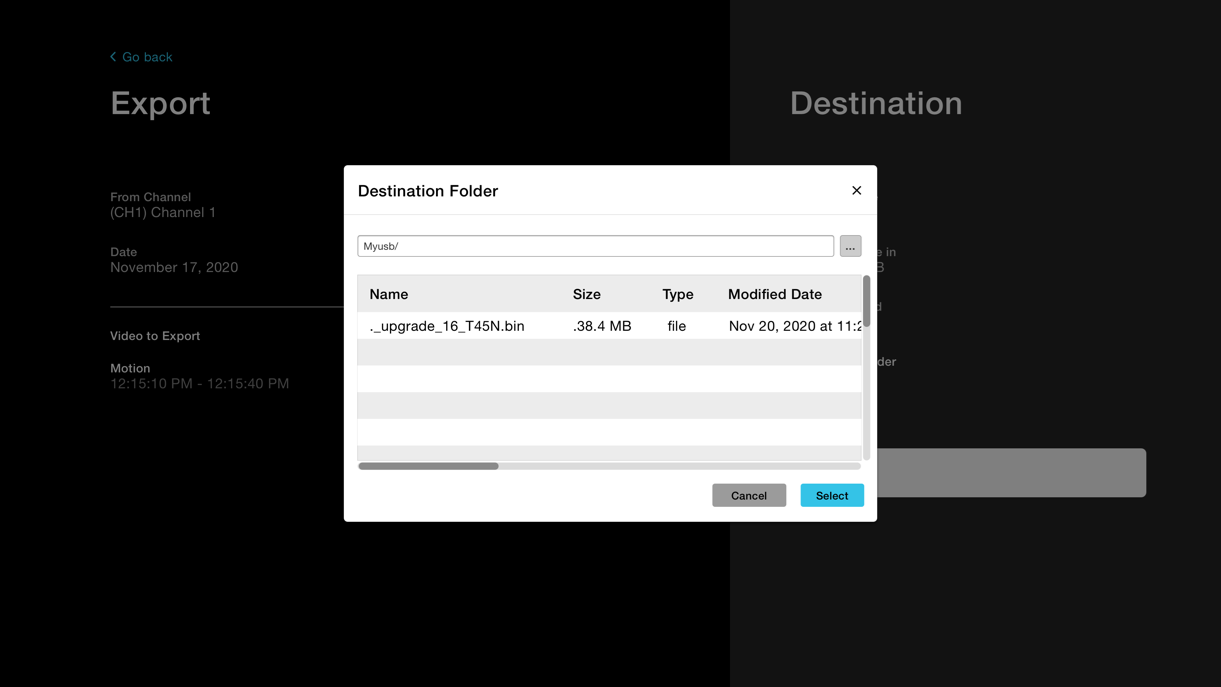
STEP 7: Your recording will begin exporting. You will see a progress count and then a “Done!” message once finished. You may now remove the USB flash drive or external hard drive from your recorder.
Thank you for choosing Night Owl!