
Once you have an active Cloud plan for a compatible device, you may need to update your payment method or address. You may easily do so within the Night Owl Protect Cloud portal by following these simple steps:
 | IMPORTANT: If updating your address to a new zip code, you may be required to delete your current Cloud plan and create a new one. |
STEP 1: Log in to your Night Owl Protect Cloud account by visiting https://protectcloud.nightowlsp.com/
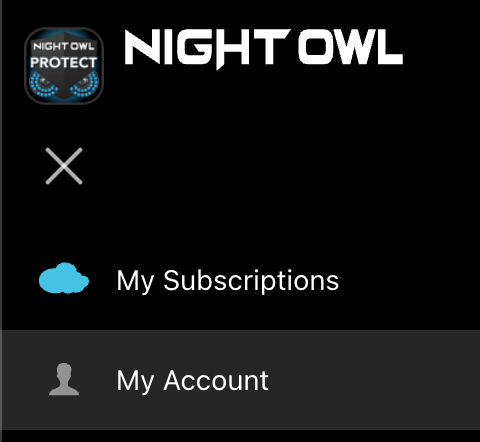
STEP 2: Navigate to the bar on the left and click My Account.
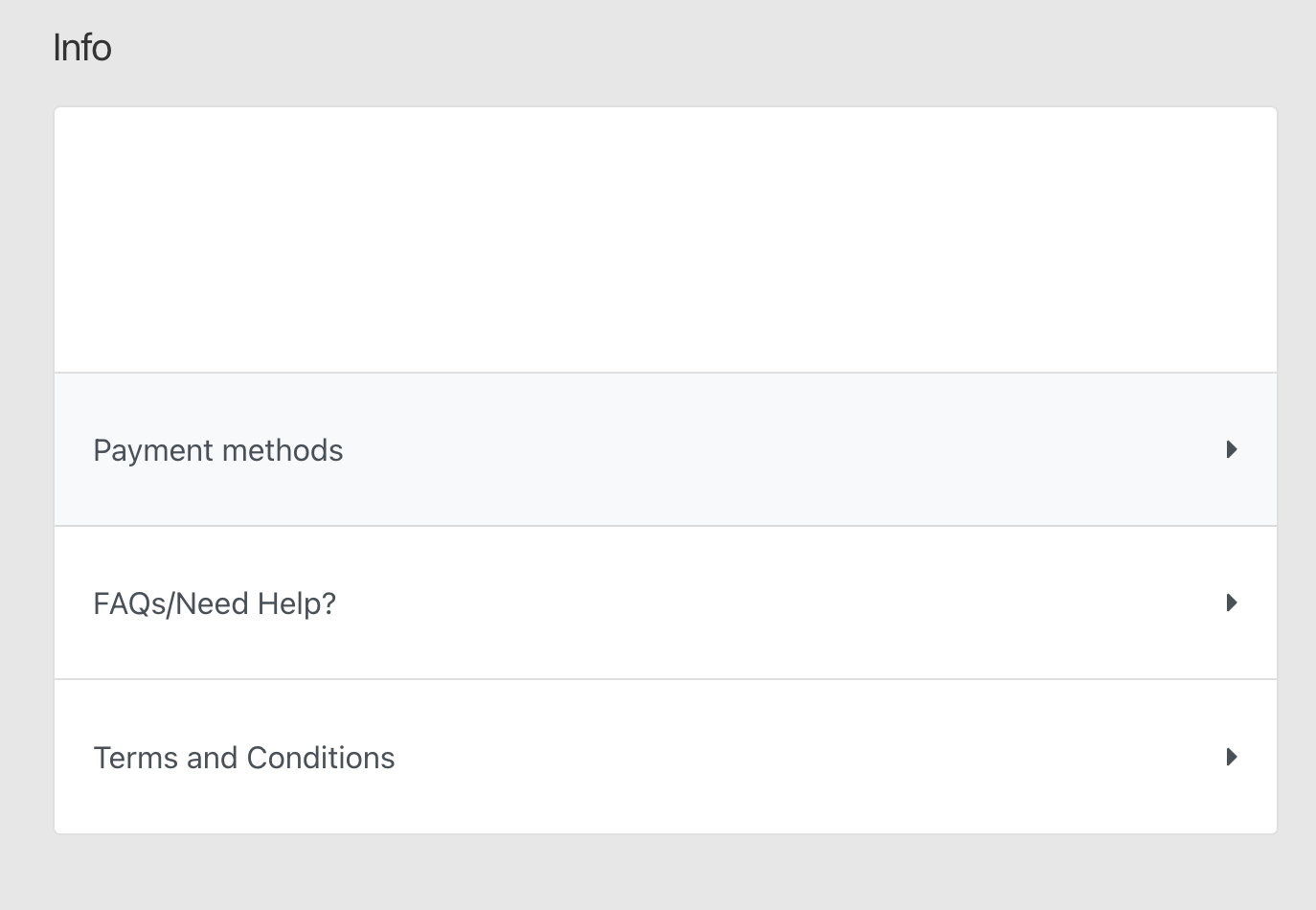
STEP 3: Choose Payment methods.
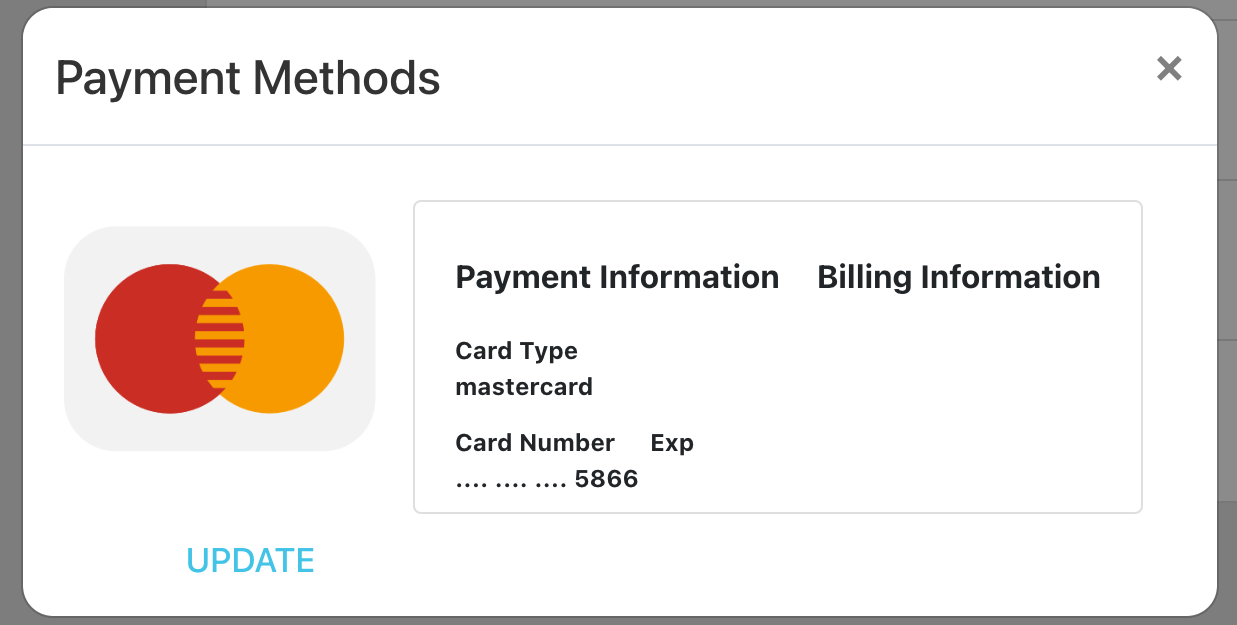
STEP 4: Your current payment method will now be displayed. To change it, click UPDATE.
STEP 5: On the next page you can edit both the billing address and payment details for your Night Owl Protect Cloud account by clicking Edit Address and Edit Details.
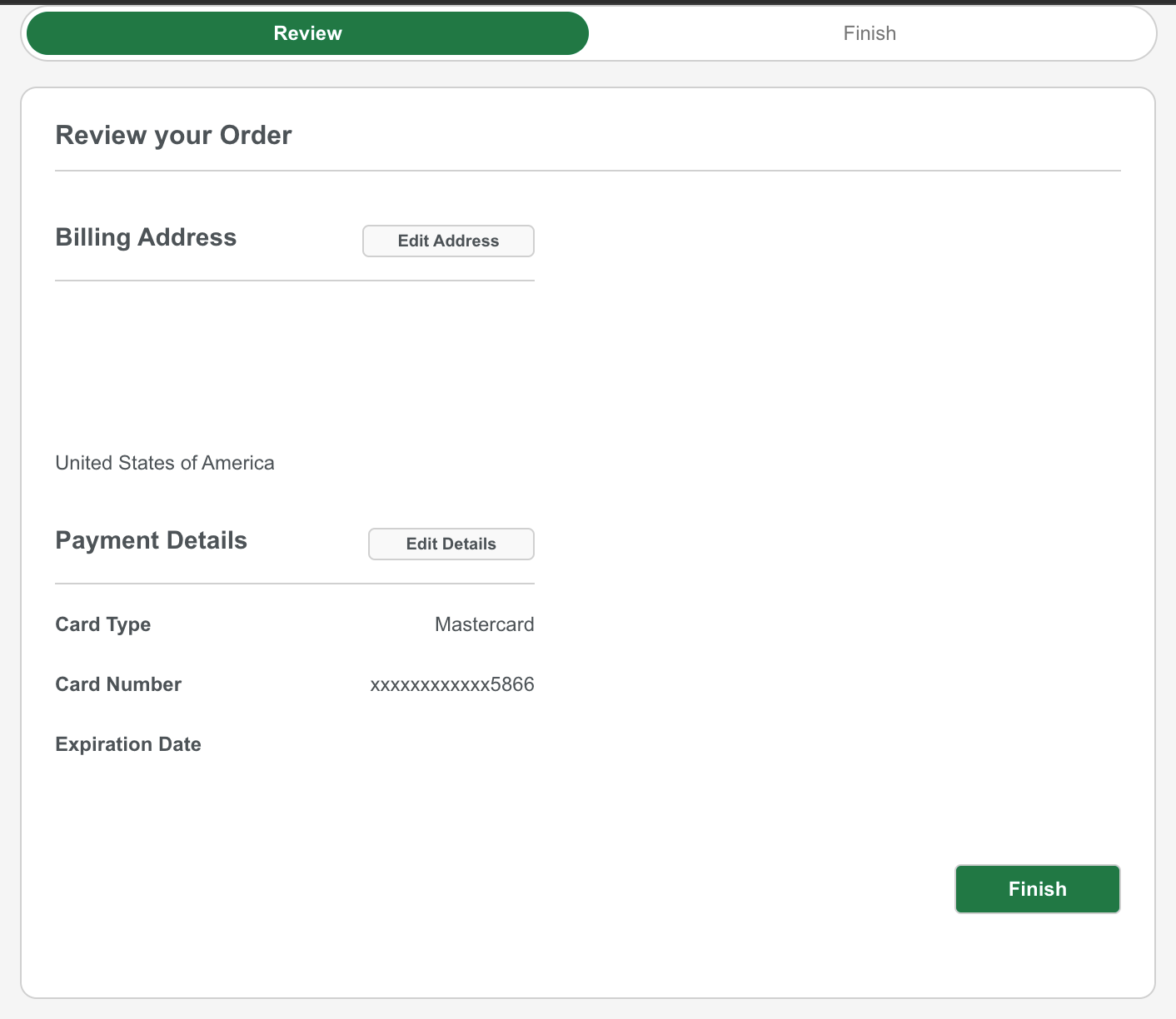
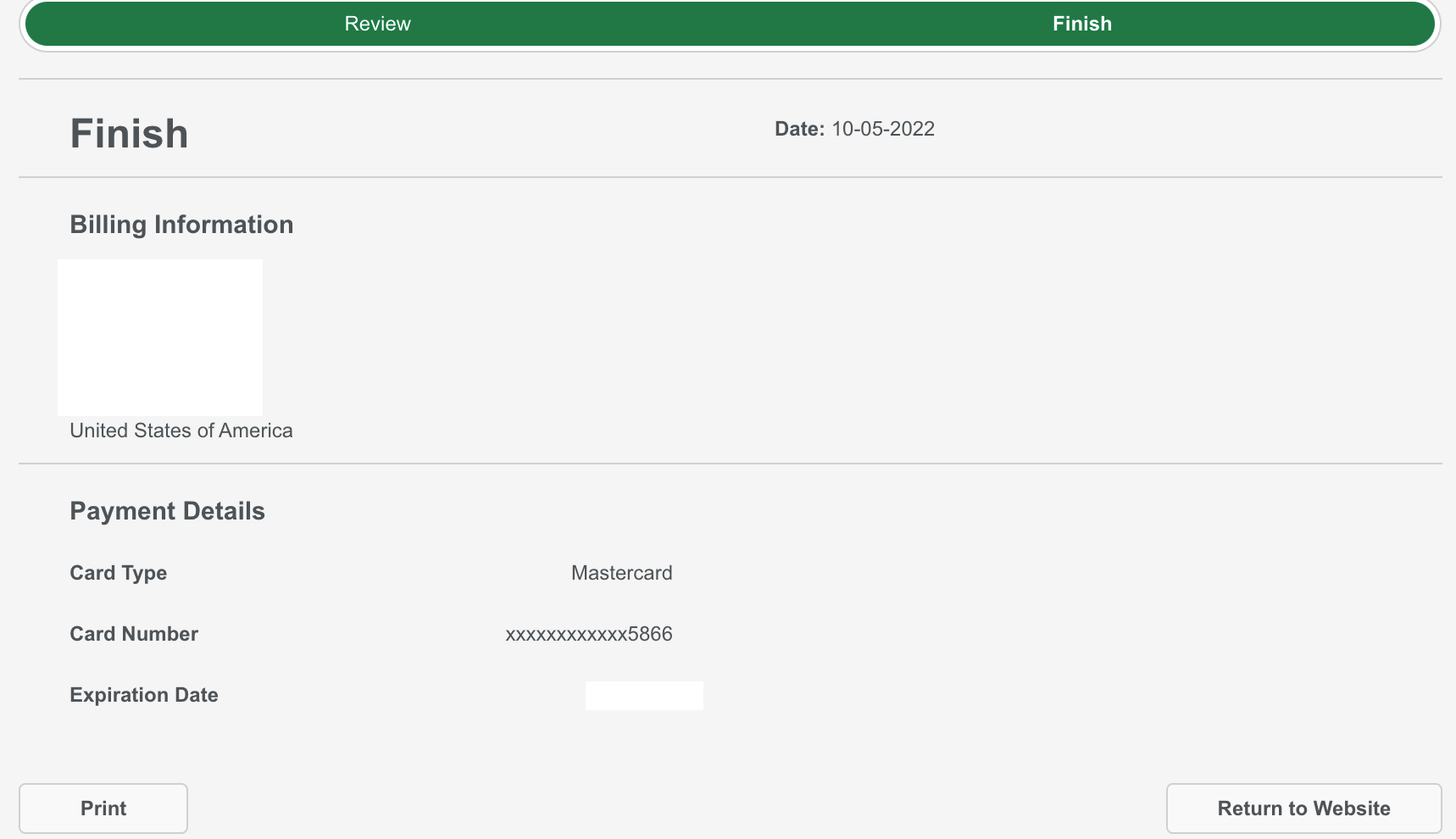
STEP 6: Click Finish when complete and a confirmation of your changes will be displayed on screen and emailed to you.
Thank you for choosing Night Owl!