
 | After resetting the password used to log in to your DVR / NVR, you will need to remove and re-add the device to the mobile app. |
Resetting the DVR / NVR Password
Follow the steps below to reset the password for your Device. Make sure you have the secure code you received in the "Reset Password" email available.

Step 2: Select, “Forgot Password” in the DVR / NVR Menu.
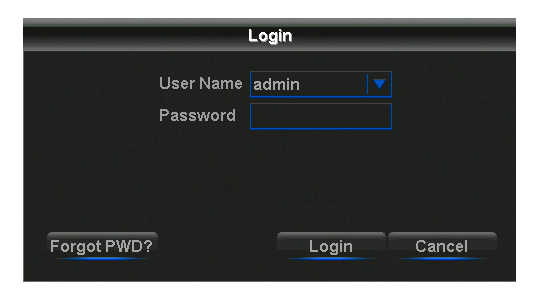

Step 3: Locate the Password Reset Secure Code found in the “Reset Password” email.
NOTE: Check your Junk/Spam folder if the email is not in your Inbox.
Step 4: Enter the Password Reset Code into the "Secure Code" field, then left-click the mouse just below the onscreen keyboard. Click "OK" to continue.
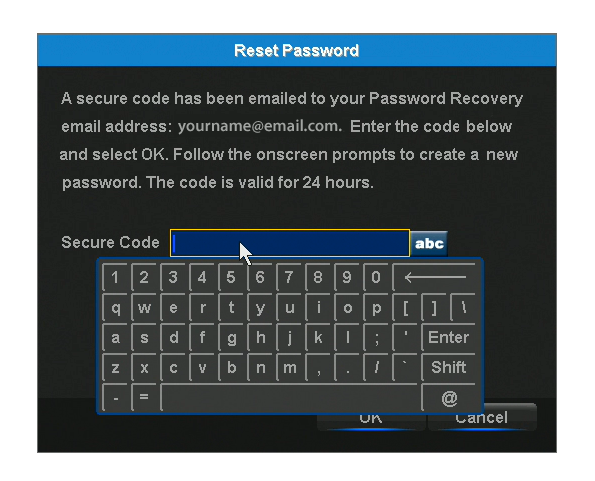
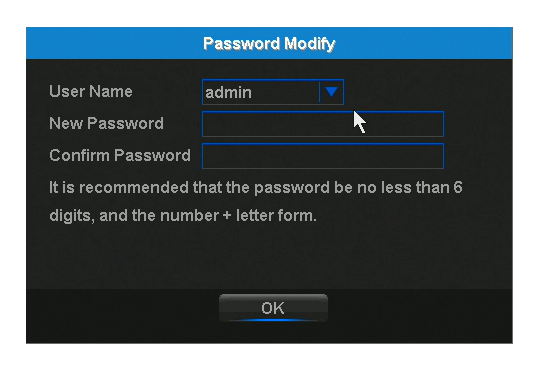
Step 5: Follow the prompts to create a new password.
Step 6: Confirm the new password.
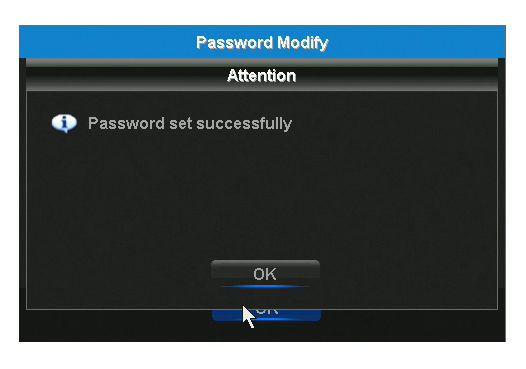
Step 7: Once the password reset is successful, and depending on the DVR / NVR model, it may or may not automatically reboot after the password is reset. If the device doesn’t automatically reboot, unplug the DVR / NVR power adapter from the back of the device. Wait 10 seconds and plug it back in.
 | Now that you have reset the password used to log in to your DVR / NVR, you will need to remove and re-add the device to the mobile app. Click on your mobile app below and follow the simple instructions to remove and re-add the device. |
 Click Here Click Here |  Click Here Click Here |  Click Here Click Here |